Rodin to Blender
There are two ways to get a Rodin model onto your Blender timeline: generate without leaving Blender using the official RodinBridge add-on, or generate on the web and import the export yourself. This guide covers both, plus the material, rigging and troubleshooting details that actually decide whether the import goes smoothly.
Two paths into the same scene
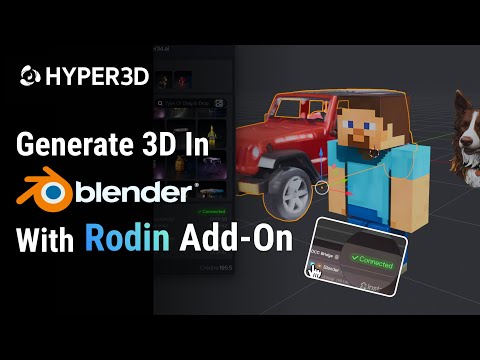
Blender is one of the DCC tools Hyper3D officially supports for Gen-2.5, and there are two ways to bring a model in. The RodinBridge add-on puts generation inside Blender itself - a Rodin button in the 3D viewport, a floating progress window, and automatic import when the result is ready. The manual path - generate on the web, export a file, import it - works everywhere and is worth knowing even if you use the add-on day to day, since it's what you fall back to for older Blender versions or a teammate's machine without the add-on installed.
Either way, the same downstream questions apply: which format keeps materials intact, which topology mode survives rigging, and what to do when a texture comes in pink. That's the bulk of this guide.
Generate without leaving Blender
Requirements: Blender 4.0 or later, and Google Chrome 116 or higher (the add-on drives generation through a connected browser window).
Install it
- On the Rodin frontpage, hover over the Add-On icon and click Install to download the ZIP file.
- In Blender, go to Edit > Preferences > Add-ons.
- Click the arrow icon in the top-right corner and choose "Install from Disk."
- Select the ZIP file you downloaded.
- Enable RodinBridge via its checkbox in the add-ons list.
- A Rodin button now appears in the 3D viewport - that's your entry point to every add-on feature.
What it can do
- Direct generation with auto-import - results land in your scene without a manual export/import step
- Image replacement for swapping generation inputs without restarting the flow
- ControlNet integration - select an object in your scene and choose a mode to guide the result
- Multiview generation via Load Image, for feeding in more than one reference angle
- One-Click or Manual modes - fully automated, or step-by-step control over each stage
- Import from your library - pull in anything from your featured or previously generated collections via the Export buttons
The Rodin webpage opens automatically alongside Blender and shows progress in a floating window, so you're never fully switching context away from the viewport.
Six steps without the add-on
- Generate on the web. Start from a text prompt or an image reference; iterate for free before you export.
- Pick a topology mode. Quad if the model will be rigged, Raw for a static asset.
- Export as GLB. It's the format with the fewest import headaches in Blender.
- Import via glTF 2.0. File > Import > glTF 2.0, then select the .glb.
- Verify scale in the N-panel. Rodin doesn't enforce a fixed real-world unit, so check the transform values before you build a scene around it.
- Clean up geometry if needed. Run Mesh > Clean Up to catch any stray non-manifold edges before further work.
Which export format for Blender
| Format | Import method | Key characteristic |
|---|---|---|
| GLB | File > Import > glTF 2.0 | Self-contained - geometry, materials and textures in one file, nothing to relink |
| FBX | FBX importer | Works well for game pipelines; occasional texture relinking needed |
| OBJ | Wavefront importer | Materials ship separately - highest risk of missing-texture issues |
| USDZ | USD importer | Built for AR/Apple workflows; less convenient for Blender specifically |
Full breakdown of all five Rodin export formats, including STL for printing, is on the export formats page.
PBR maps wire themselves up
Rodin generates PBR materials that map to Blender's Principled BSDF automatically on GLB import - base color, roughness, metallic and normal maps get connected for you, with no manual node wiring required. This is one of the strongest arguments for GLB over OBJ: an OBJ import leaves you relinking each texture slot by hand, while a GLB import hands you a working shader immediately.
If the model is going to move
A few extra steps matter once a model is headed for animation rather than staying a static prop:
- Export with Quad topology instead of Raw - it deforms predictably under weight painting, where triangulated Raw geometry can produce unpredictable results.
- Use the TAPose option for humanoid characters so the rest pose is rig-friendly from the start.
- Run Mesh > Clean Up before weight-painting to catch any geometry issues that would otherwise show up as deformation artifacts later.
Common import problems, and the fix
| Problem | Cause | Fix |
|---|---|---|
| Pink/missing textures | Broken file paths, common with OBJ | Re-link in the Shader Editor, or export as GLB instead |
| Incorrect scale | No fixed real-world units on export | Check the N-panel and scale manually to match your scene |
| Faceted shading | Flat shading or flipped normals | Use Shade Auto Smooth; recalculate normals |
| Poor rigging deformation | Raw triangulated topology | Re-export with Quad topology |
| Holes / open edges | Non-manifold geometry | Run Mesh > Clean Up |
If an issue is confined to one region of the mesh, Partial Edit can regenerate just that part on the Rodin side instead of you fixing it by hand in Blender.
What people build with Rodin in Blender
Game asset prep
Retopology and cleanup on the way to an engine-ready export
Look development
Relighting and material tweaks on a generated base mesh
Rigging & animation
Quad-topology exports ready for weight painting
Renders & previews
Fast concept renders without modeling from scratch
Scripting an unattended pipeline instead of using the add-on interactively? The Rodin API guide covers calling the same Gen-2.5 pipeline from code, including community Blender-MCP integrations for AI-agent-driven scenes.
Blender integration walkthroughs
Every Rodin guide on rodin3ds.com
Getting a model to import
Getting started
Reviews & comparisons
Rodin to Blender: frequently asked questions
Is there an official Blender add-on for Rodin?+
Yes - RodinBridge. It requires Blender 4.0 or later and Google Chrome 116 or higher, and lets you generate directly inside Blender with automatic asset import, rather than exporting from the web app and importing manually.
What's the best export format for bringing a Rodin model into Blender?+
GLB, imported through File > Import > glTF 2.0. It's self-contained - geometry, materials and textures in one file - so there's nothing to relink, unlike OBJ where materials ship separately and are the most common source of missing-texture problems.
Why are my textures pink or missing after import?+
This almost always means a broken file path, most common with OBJ exports where textures are referenced as separate files. Re-link them in the Shader Editor, or avoid the issue entirely by exporting as GLB, which packs everything into one file.
Should I use Quad or Raw topology for Blender?+
Use Quad topology if the model is going to be rigged - it deforms predictably under weight painting, while Raw (triangulated) topology can cause unpredictable deformation. Raw is fine for static props that won't be animated.
Can I generate 3D models without leaving Blender?+
Yes, with the RodinBridge add-on installed. It adds a Rodin button to the 3D viewport with One-Click and Manual generation modes, ControlNet integration on selected objects, and multi-image input, all without switching to the browser.