Rodin AI Video Generator
Turn a single image into a short motion clip with nothing but a prompt describing the movement you want. It's the fastest way to get a preview, pitch, or social clip out of an image you've already made - and it sits alongside Rodin's 3D tools rather than replacing them.
Images and prompts, out as short video
Hyper3D lists the Video Generator in its product navigation as taking "images & prompts to short videos" - a companion tool to Rodin's 3D generation and the Image Generator, rather than a 3D feature itself. You feed it a source image (a product shot, concept image, character frame, 3D render, or AI-generated image) and a short prompt describing the motion, and it returns a short video clip.
It's positioned for speed over production polish: previews, pitches, and social content where a still image needs to move for a few seconds, not a fully directed shot. For generating the concept image it starts from, see the Image Generator; for turning a 2D reference into an actual 3D asset, that's Rodin's image-to-3D pipeline instead.
Three steps, image to clip
- Upload a source image. A clear product shot, concept image, character frame, campaign visual, 3D render, or AI-generated image all work as starting points.
- Write a motion prompt. A short description of camera movement, subject motion, mood, pacing, or platform format steers what the clip does - the same "start simple, add detail for control" principle used across Rodin's prompt-writing guide.
- Preview, refine, download. Check the result, adjust the prompt if the motion read is off, then export the finished clip.
What makes a source image work well
Per Hyper3D's own guidance, the best results come from a clear subject with readable composition. A few things reliably hurt output quality:
- Crowded scenes with multiple competing subjects
- Tiny subjects relative to the frame
- Heavy blur or awkward crops on the source image
- Unreadable hands or faces, which make the resulting motion less predictable
- Conflicting perspective between the subject and its background
On the prompt side, naming the camera movement (push in, orbit, pan), the subject's motion, the mood, the pacing, and the target platform format all give the model more to work with than a bare description of the subject alone.
Which generative models you get access to
| Plan | Models available |
|---|---|
| Free | Pay-by-result, default models |
| Creator | Seedream and default models |
| Business | Featured tier - Nano Banana 2, Veo 3.1, and Seedance X30 |
Veo 3.1 (Google) and Seedance X30 (ByteDance) are third-party generative video models Hyper3D integrates into the Business tier rather than models it built in-house; Nano Banana 2 is a third-party image model in the same bundle. Exact per-generation credit costs for the Video Generator aren't published separately from the general plan pricing - generation follows the same pay-by-result credit system used across Rodin.
Built with social and preview formats in mind
You specify the platform or aspect ratio in the motion prompt itself rather than through a separate export setting - the same "describe what you want in the prompt" approach used across Rodin's tools.
Where a short clip beats a still image
Social content
Quick clips for TikTok, Reels, and Shorts from an existing image
Product previews
Add subtle motion to product shots for e-commerce listings
Storyboards & previs
Rough out camera moves and pacing before a full production
Campaign concepts
Pitch a moving-image direction before committing to full video
This isn't 3D character animation
It's worth being precise about what this tool does and doesn't do. The Video Generator produces a 2D video clip from a 2D image - it doesn't rig, skin, or animate a 3D mesh. If your goal is an actual animated 3D character or object, that work happens downstream of Rodin's model generation, in Blender or Maya, the same way it does for every other Rodin export - see the Blender integration guide and game development workflow for how that pipeline fits together. The Video Generator is a faster, separate tool for when a still image needs to move for a pitch or a feed, not a substitute for character rigging.
Walkthroughs of the Hyper3D pipeline
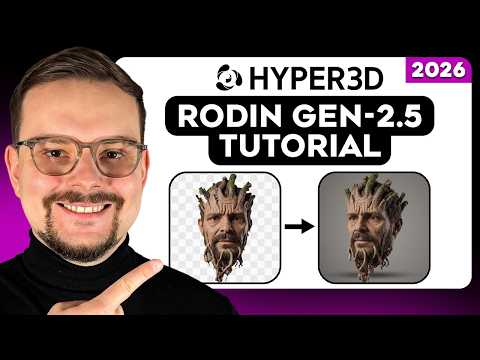
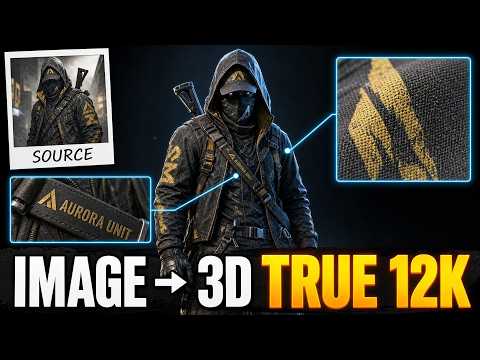
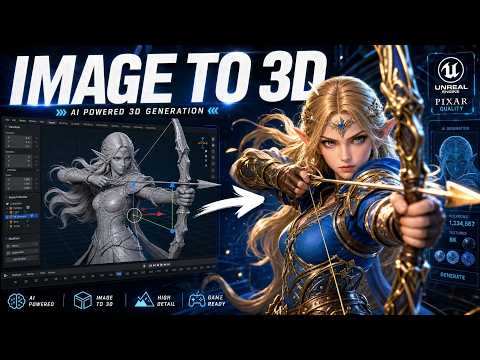
No dedicated Video Generator walkthrough was available at time of writing. The clips below cover Rodin's broader generation pipeline, which the Video Generator sits alongside.
Every Rodin guide on rodin3ds.com
Companion tools
Getting started
Video Generator: frequently asked questions
What is Rodin's AI Video Generator?+
It's a Hyper3D tool that turns a single source image plus a short motion prompt into a short video clip. You upload an image - a product shot, concept image, character frame, 3D render, or AI-generated image - describe the camera movement, subject motion, mood and pacing you want, then preview and download the result.
Does the Video Generator animate my 3D model?+
No. It generates a short motion video from a 2D image for previews, pitches, and social content - it does not rig or animate a 3D mesh. Rigging, skinning, and full character animation stay in Blender or Maya using Rodin's exported models, as with the rest of the Rodin pipeline.
What models power the Video Generator?+
It varies by plan. Rodin's pricing page lists Seedream and default models available on the Creator tier, with featured Business-tier models including Nano Banana 2, Veo 3.1, and Seedance X30 - third-party generative models Hyper3D integrates rather than builds in-house.
What image works best as a source for video generation?+
A clear, well-composed single subject - a product shot, concept image, character frame, 3D render, or AI-generated image. Crowded scenes, tiny subjects, heavy blur, and awkward crops reduce output quality, and unreadable hands or faces make the resulting motion less predictable.
What is the Video Generator used for?+
Mainly previews and pitches rather than final production content: social clips for TikTok, Instagram Reels or YouTube Shorts, product previews for e-commerce, storyboards and previs for creative teams, campaign concepts for advertising, and quick educational or training clips.