Rodin Partial Edit
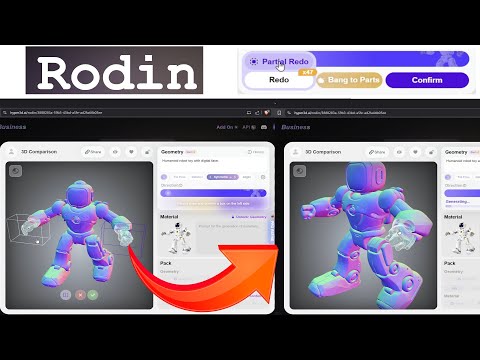
Nine-tenths of a model is right and one region is wrong - a material, a headlight, a carved pattern. Regenerating the whole asset risks losing the parts you already approved. Partial Edit fixes just the region you select, using 3D Inpainting to blend the change in seamlessly with everything left untouched.
The gap between one-shot generation and finished work
Most AI 3D generation is one-shot: describe or show what you want, get a full model back. That's fast, but it creates a real problem once you're refining an asset - if only the material on one panel is wrong, a full regeneration risks changing everything else too, including the parts you'd already signed off on.
Partial Edit (part of what Hyper3D calls Rodin Gen-2 Edit) solves that directly: you select the region that needs work and describe the change, and only that region regenerates. Hyper3D's own framing is that this keeps "the artist firmly in control of the generation process until the asset is truly production-ready" - treating generation as a starting point to refine, not a single take you either accept or throw away.
3D Inpainting, region by region
Select a region
Drag-and-box selection directly on the 3D model
Describe the change
A text prompt tells the model what that region should become
Masked diffusion
Only the masked region regenerates, blending into the rest
Seamless result
The edit blends naturally with the untouched geometry around it
Under the hood, Hyper3D describes this as a masked diffusion process combining large-scale diffusion modeling with its 3D representation techniques - the technical reason the edit can stay confined to just the selected area.
Four steps, from spotting the issue to export
- Load the model. Bring in a Rodin generation, or any external asset - Partial Edit isn't limited to Rodin-made geometry.
- Select the region to change with a drag-and-box selection directly on the 3D preview.
- Describe the edit in text - a material swap, a pattern, a shape adjustment, or an additive detail.
- Review and export. Confirm the region blends correctly, then export in STL, FBX, OBJ, GLB or USDZ.
Four categories of change
| Edit type | Example |
|---|---|
| Texture / pattern | Adding a floral pattern to a carved surface |
| Material finish | Applying a metallic finish to a specific part |
| Geometric refinement | Adjusting the shape of a component, like a headlight |
| Additive edit | Integrating a new element into an existing structure, like a rooftop garden on a building |
Partial Edit sits alongside two related tools in Rodin Gen-2 Edit: Smart Topology Conversion, which turns a low-poly model into artist-ready geometry with clean wireframes, and Recursive BANG to Parts, which does deep, multi-level decomposition of a complex asset into its components. See the Gen-2.5 feature guide for how these fit into the broader editing toolset.
When to edit, when to start over
| Situation | Better fit |
|---|---|
| One region needs a fix, the rest is approved | Partial Edit |
| You want to preserve topology and UVs you've already cleaned up | Partial Edit |
| The overall shape or concept is wrong, not just one part | Full regeneration |
| You're still exploring early-stage variations | Full regeneration |
| You're bringing in an external asset that just needs one detail changed | Partial Edit |
For the earlier, exploratory stage this feature picks up after, see text-to-3D and image-to-3D.
Where a targeted fix beats a full redo
- Furniture design refinement - swapping a carved detail or finish on one piece without regenerating the whole item.
- Automotive detailing - adjusting a specific component, like a headlight or trim piece, on an otherwise-approved vehicle model.
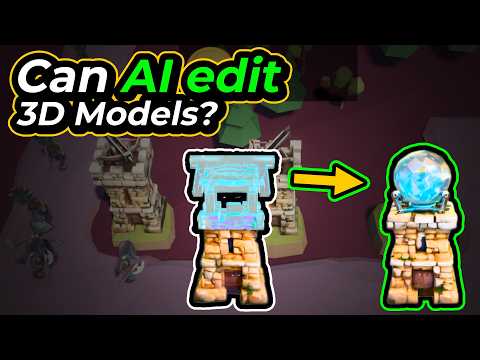
- Architectural enhancement - adding a complex new element, like a rooftop garden, onto an existing building model.
- External asset cleanup - fixing one problem area on a model that didn't come from Rodin at all.
Partial Edit walkthroughs
Every Rodin guide on rodin3ds.com
Editing & refinement
Generation
Partial Edit: frequently asked questions
What does Rodin's Partial Edit feature do?+
It lets you regenerate only a specific part of a 3D model - a texture, a material, a shape detail - while keeping the rest of the asset untouched. You select a region, describe the change in text, and Rodin's 3D Inpainting technology updates only that area.
How do I select the area I want to edit?+
Via drag-and-box selection directly on the 3D model, then a text prompt describing the change you want in that region. The system uses a masked diffusion process to complete the edit so it blends seamlessly with the untouched surrounding geometry.
Can I use Partial Edit on a model I didn't generate with Rodin?+
Yes. The feature accepts any model, including external assets you bring in yourself, not just Rodin-generated geometry.
What kinds of edits can Partial Edit make?+
Texture and pattern changes, material finish adjustments, geometric refinements to a specific component, and additive edits that integrate new elements into an existing structure - demonstrated use cases include furniture, automotive, and architectural detailing.
Does Partial Edit keep the rest of my model's topology intact?+
Yes - output maintains clean wireframes, consistent topology flow, and proper UV layouts across the whole asset, not just the edited region, so the result stays production-ready after the edit.